Digital Accessibility for Course Materials
Last updated:
This guide is for instructors and instructional support staff who are creating digital course content. It was developed in response to the Americans with Disabilities Act (ADA) rule that requires digital course content to be accessible. Learn more about the new rule.
Steps to make your digital course materials more accessible
Digital accessibility is a skillset that takes time to develop. If it is new to you, keep in mind that you don’t have to do everything at once. Focus on making steady, meaningful progress. Here’s how to get started:
Remove any content no longer needed in your Canvas course.
Content that you don’t need might include old syllabus files, assignments, or readings. Removing old content will make it faster and easier to review and update what remains.
- Delete individual items from your course manually or use TidyUp if you have many unused items. TidyUp scans and identifies which course items are not in use. (See Managing Files in TidyUp)
- TidyUp doesn’t see files or images that are used in Question Banks for Classic Quizzes and other LTIs (example: New Quizzes). To avoid accidentally deleting these items, move them into a Canvas folder and exempt them from being scanned.
Learning these core digital accessibility skills makes later steps easier to understand. This might take about ~20 minutes for a quick skim, or an hour or more for a deep dive.
You can always go back to these core skills as specific questions come up.
There are two tools in Canvas that identify accessibility issues:
Option 1: To scan your entire course at once, use Canvas’s built-in accessibility checker, UDOIT, which identifies accessibility issues and guides you through prioritizing and fixing them. (See Scan a Course with UDOIT.)
- Keep in mind that the first time you use it, UDOIT may identify dozens or hundreds of issues – this is normal and not a crisis.
- Get started with “Easiest to Fix” to build momentum, then focus on “High Impact” issues that significantly affect the user experience.
- Set a realistic goal: fix 10-15 issues per session rather than attempting to fix everything.
- You may wish to address video, audio, and files (PDFs, MS Word, MS Excel, Google Docs, etc.) separately. Those are covered below.
- Track your progress over multiple semesters with UDOIT’s accessibility score.
Option 2: To fix issues as you create content or before releasing it to students, use the Canvas Accessibility Checker that is built into the Rich Content Editor. This allows you to address issues on each page or assignment as you go.
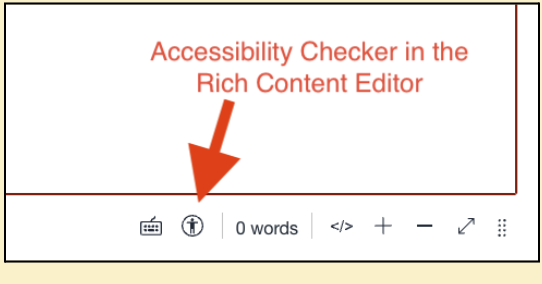
- Keep in mind that UDOIT is a more robust tool and may catch additional issues. See Comparison of Canvas Accessibility Tools: Accessibility Checker vs. UDOIT for details.
Reminder: If either of these tools seems too advanced for your comfort level, learn more about core digital accessibility skills. You can review one topic at a time and then come back to fix that issue in your course.
Please note: Campus is upgrading Kaltura services to provide human-generated captions and AI-generated audio descriptions for videos in Canvas. This service will start fall semester 2026.
Every video in your course must have captions and audio descriptions, and all audio-only content (e.g., audio recording or podcast) must have a transcript. UDOIT can check for some video and audio issues, but it can’t find or guide you through fixing all of them. Instead, you should review the video and audio included in your course.
To learn how to add captions and audio descriptions to your media, review the “How to do it” instructions on Video and Audio below.
PDFs can be hard to remediate and should be avoided. Share files as accessible Word or Google documents. If a PDF must be used, find a link to the article on a webpage whenever possible instead of using a scanned copy. (UW Libraries has access to a catalog of many online articles, databases, and journals.)
- For Microsoft files, review and fix issues using Microsoft’s built-in accessibility checker; then re-upload accessible versions.
- For Google Docs, Slides, and Sheets: Review and fix issues using Grackle, a Chrome extension similar to Microsoft’s built-in accessibility checker.
Revisit these steps to continuously improve the accessibility of your digital content to enhance inclusion for everyone. Accessibility work is a continuous, ongoing process baked into one’s workflow. As you add new content to your course, ensure it is digitally accessible from the start.
Core Digital Accessibility Skills for Instructors
Many people with disabilities use assistive technologies such as screen readers, screen magnifiers, and speech recognition software to access and interact with digital course content. In order for these technologies to work correctly, the content must be formatted correctly. Learning the following core skills helps students to more fully participate in your course.
When this applies:
Provide alternative text (“alt text”) for all graphics, charts, and images (that are not purely decorative).
What to think about and why:
How would you describe the visual’s purpose to someone who cannot see it? Briefly include the same information you want sighted users to get. A screen reader can read this descriptive text out loud for users who are blind or have low vision. Keep the following in mind:
- For simple visuals, keep the alt text short. See examples of alt text for various images.
- Do not include “Picture of”, “Graph of,” or “Image of” in the alt text.
- For more complex visuals, include a longer text explanation in the page itself. See examples of how to present information within complex images.
How to do it:
When this applies:
Use high contrast for all colors. Do not use color alone to convey meaning; instead, make sure to include other visual indicators as well.
What to think about and why:
Users who are color-blind, have low vision, or are in bright lighting need high contrast and other visual indicators to understand meaning. Keep the following in mind:
- Is there enough contrast (i.e. difference in brightness) between the foreground and background colors of all content?
- When using color to distinguish information, apply additional formatting so color is not used alone (e.g., bolding, shapes, patterns, etc.).
How to do it:
- After creating content in Canvas, scan your course with UDOIT. Look for issues flagged as “Insufficient text color contrast with the background.” Then use the up or down arrows to fix the contrast ratio. See this Video Demonstration: Using UDOIT to fix color contrast issues.
- Pick from high contrast colors in Microsoft Word (same applies to PowerPoint, Excel).
When this applies:
Use headings any time you organize text content with titles, sections, or labels.
What to think about and why:
Headings help sighted users quickly scan content and understand a page’s layout. They also help blind and low-vision users scan content, understand the page structure, and navigate between sections. Keep the following in mind:
- Use Built-In Heading Styles
- Visual styling alone (bold, larger font) is not enough. You must use built-in heading styles from the editing toolbar so that the heading structure is coded for assistive technology.
- Follow Heading Order and Do Not Skip Levels
- Use heading levels chronologically (Heading 1, Heading 2, Heading 3, etc.) and never skip any levels.
- Every document or webpage should only have one Heading 1, typically the page’s title.
- In PowerPoint presentations, each slide should contain a designated “Slide Title” text box. Headings are not available in PowerPoint or Google Slides.
- Use Unique, Brief Heading Text
- Each heading must be unique and capture the main idea of the section in only a few words.
How to do it:
- Use built-in heading styles from the toolbar.
- Add headings in Canvas. Note: By default, the Heading 1 for a Canvas Announcement, Assignment, Discussion, Page, or Quiz is the same as the title or name entered when creating the item. Therefore, any content added begins with a Heading 2.
- Add headings in Microsoft Word.
- Add headings in Google Docs.
- Use default templates and layouts.
When this applies:
Use text that is descriptive, unique, and meaningful for hyperlink labels, such as “Water Quality Report” rather than “click here,” or “read more.” Do not just copy and paste the actual URL. Make sure links are underlined and a different color from their surrounding text.
What to think about and why:
While sighted users can visually scan a page to see what links are on it and then skim the context around a link to learn its purpose, screen reader users rely on meaningful, unique links to know which link to select and where it will take them. For example, screen reader users may wish to quickly find a certain link without having to read the entire page again. If links are labeled “click here,” or if any links have the same label, they are difficult to distinguish.
Also keep in mind:
- Avoid using the URL (starting with http://) as the link. This is tedious and confusing for all users, especially screen reader users.
- Avoid adding links to images, since those won’t be read by screen readers. Instead, add the link as text on the webpage.
How to do it:
When this applies:
Use lists whenever you present a series of related items, steps, or data points that belong together.
What to think about and why:
Lists provide a clear visual shorthand for all users and — when properly formatted — provide essential structural cues for users of screen readers. Keep the following in mind:
- Format all lists using built-in tools (like bulleted or numbered list buttons in Word, PowerPoint, and Canvas). If a list is created manually by typing numbers or dashes, then screen readers won’t recognize it as a list and will read it as a block of text, losing the structure and navigational benefits.
- Use a numbered list when the order of the items is important, such as a list of steps to follow for an assignment.
- Use a bulleted list when the order of the information doesn’t matter, such as a list of key ideas.
- Avoid lists for long outlines: If your list spans multiple pages or includes complex hierarchy, use headings instead.
- If you have sub-points, use the “Indent” tool (not spacebar) to create a nested list. This maintains the logical relationship between the main point and the sub-points.
How to do it:
When this applies:
Use tables only for information that needs a grid to make sense. Avoid using tables to organize page layout (e.g., dividing a page into two columns). Use the program’s columns tool to generate two- or three-column documents.
What to think about and why:
Whereas a sighted user can glance at a table cell and move their eyes up to see the column header and row header that it belongs to, a non-sighted user relies on underlying table program code to convey that “mapping” for them. Keep the following in mind:
- Start with headers (rather than table data) in the top row and in the left-most column.
- Designate which cells are headers (rather than data cells) and which type of header (either row or column).
- Avoid merging cells or splitting cells.
- Avoid nesting tables (i.e., placing tables within tables).
How to do it:
- If you’re just trying to format, layout, or distinguish content on a page, try using text styling instead.
- Add a table in Canvas and adjust the cell properties. Then confirm accessibility using Canvas’s Accessibility Checker.
- Add a table in Microsoft Word. Then confirm accessibility using Word’s Accessibility Checker.
- Add a table in Microsoft PowerPoint. Avoid using Smart Art to create tables, since text in Smart Art is not accessible and will be flagged by PowerPoint’s Accessibility Checker.
- Add a table in Google Docs or Slides. Then confirm accessibility using Grackle accessibility checker, which is an integration for Google Apps.
When this applies:
Include captions for all video and audio content (e.g., podcasts), both pre-recorded and live. Captions provide a synchronized text alternative to speech and non-speech audio information. Also include audio descriptions, which are verbal descriptions of what’s happening for users who are blind or have low vision.
What to think about and why:
Users who are D/deaf, have hearing loss, have cognitive disabilities, or those in very noisy environments rely on captions to access and understand videos. Keep the following in mind:
- Words should be accurate and spelled correctly, especially subject matter-specific words.
- Speakers should be identified (e.g. “Narrator:”).
- Sound effects, musical instruments, and lyrics must be included if they are integral and meaningful.
Users who are blind or have low vision rely on audio descriptions to fully understand what is going on in a video. If there is any visual information on screen that is not part of the audio, it must be captured in an audio description.
How to do it:
Captions:
- Upload and embed your media in Canvas with Kaltura, the UW media-hosting platform. Human-generated captions will be available in Kaltura starting Fall 2026. Prior to Fall 2026, edit auto-generated captions for accuracy.
- Add YouTube videos to Kaltura to take advantage of that human-generated captioning in Kaltura.
- Media hosted elsewhere (e.g., Vimeo or news websites) might have captions, so verify it has accurate and complete captions before including it in your course. Consider alternative media if the captions have unacceptable inaccuracies. If no alternative media is available, include a supplemental edited transcript.
- For live captioning of virtual courses, familiarize yourself with resources for transcription in Zoom, WebEx, and Microsoft Teams.
Audio Descriptions:
- If you need to add audio descriptions after recording, or for videos that you did not create, an AI tool will be available by Fall 2026 for videos in Kaltura.
- When you record lecture videos, add your own audio descriptions by verbally describing any visual that is on screen and other projected tools, such as PowerPoint slides.
Your partners for accessible courses
The Center for User Experience
At the Center for User Experience, we are committed to working with you to make digital spaces more accessible, usable and inclusive for all students, faculty and staff at UW–Madison. We help the university follow its Digital Accessibility Policy by offering free evaluation and consultation services to all UW–Madison community members.
Office of Compliance
The ADA Coordinators in the Office of Compliance provide guidance and information on complying with the digital accessibility requirements of the Americans with Disabilities Act. Visit Digital accessibility and the Americans with Disabilities Act (ADA) or email ada_coordinator@wisc.edu for more information about the new rule.
Learn@UW
The Learn@UW team supports many tools used across UW–Madison, including Canvas, TidyUp, and UDOIT. Learn@UW offers training, documentation, and consultations to make sure instructors can use the tools that best fit their needs.